
.png)
This month: Payments gets expense categories, card repayments go automatic, you get more control over your collateral, and we rebuilt the two transaction tables you probably live in every day.
This period's highlight: Payments now has expense categories and memos. Every payment gets a category from 27 options across 8 groups, plus an optional memo field for invoice numbers, project names, or whatever context your finance team needs. → Read the full breakdown
What's New at a Glance
New
1. Payments Categories and Memos
The old "Purpose of Payment" dropdown gave you 5 banking terms that meant nothing to your finance team. That's gone. In its place:
- A "Category" dropdown with 27 expense categories (Software & SaaS, Payroll & Wages, Legal, and more), organized into 8 groups so you're not scrolling a flat list
- An optional memo field that auto-fills with the category description, but you can overwrite it with your own text (up to 500 characters), a purchase order number, a vendor name, whatever's useful
- Both fields stay editable after the payment is made, and both now show up in your CSV export

Who this helps: finance teams reconciling Payments transactions, and anyone who used to export to Google Sheets just to manually tag payments by type.
How to use it: pick a category when you create any Payment transaction. The memo will auto-fill, swap in your own note if you want something more specific.
Payment creation form with the Category dropdown open, showing grouped expense categories under People and Facilities headings. See how to do it in our post here
2. Automatic Repayment from Card Collateral
You already have the money. Now Reap uses it automatically.

If you're a Reap Card user with collateral, you no longer need to manually repay your monthly statement. Here's how it works:
- When your statement generates, Reap deducts the balance from your highest-value collateral (USDC, USDT, or Fiat) within 24 hours
- It's on by default for everyone with collateral, you can turn it off any time
- If your collateral doesn't fully cover the balance, Reap repays what it can and emails you about the rest, with a direct link to finish the payment manually
Who this helps: basically every Reap Card user with collateral who's currently clicking "Make Repayment" by hand each month.
Current card statement section showing the Autopay toggle enabled with a description of automatic repayment behavior. More details on auto-pay set up in our blog post.
3. Move Stablecoins out of Card Collateral
Your collateral doesn't have to sit still anymore.
You can now move eligible stablecoins out of Reap Card collateral into your General balance, Reap Pay, or Optimize, right from the Treasury page. A few things worth knowing:
- It's an internal transfer, not an on-chain movement, and it's free
- Your card credit limit and available balance update immediately once you move funds out
- You'll see the estimated impact on your credit limit before you confirm anything
Who this helps: teams sitting on more collateral than they're using for card spend, who want to redeploy it toward payments or yield without opening a support ticket.
How to use it: go to Treasury → Move Funds → pick Card as the source and choose your destination (General, Pay, or Optimize) → select USDC or USDT → enter an amount → confirm.
Learn more: Moving Funds Between Card, Payments, and Treasury
4. USDC Deposits via Hyperliquid
Another way to fund your account, if that's where your USDC already lives.
You can now deposit USDC on Hyperliquid directly into your Card, Pay, or General balance. A few things worth knowing:
- Select Hyperliquid as the network in the Add Funds flow and you'll get a generated wallet address to send to (or a QR code to scan)
- Minimum deposit is USDC 2, anything below that may not be credited and isn't refundable
- Deposits typically show up in your account within 5 minutes
- Only USDC is supported on this network; sending anything else can result in lost funds
Who this helps: teams already holding or operating funds on Hyperliquid who want a direct way to fund Reap without routing through another chain first.
How to use it: go to Add Funds for Card, Pay, or General → select Stablecoins → choose Hyperliquid as the network → send USDC to the address shown.
Enhancements
1. Redesigned Card Transactions and Payments Tables
Month-end review just got a lot less clicky. Here's what changed:
- On Card: categories are now inline-editable right in the table row, and a new Attachment column shows receipt status at a glance. Click the plus icon to upload a receipt without leaving the table
- On Payment: the category you set at payment creation now shows as its own column, so you're not opening every payment just to tell them apart
- Reorganized columns: Status moved to filter tabs at the top of the table, Amount now converts to your Entity Currency with FX applied, and deposits/repayments moved to their own pages (Treasury and Balance & Statements)
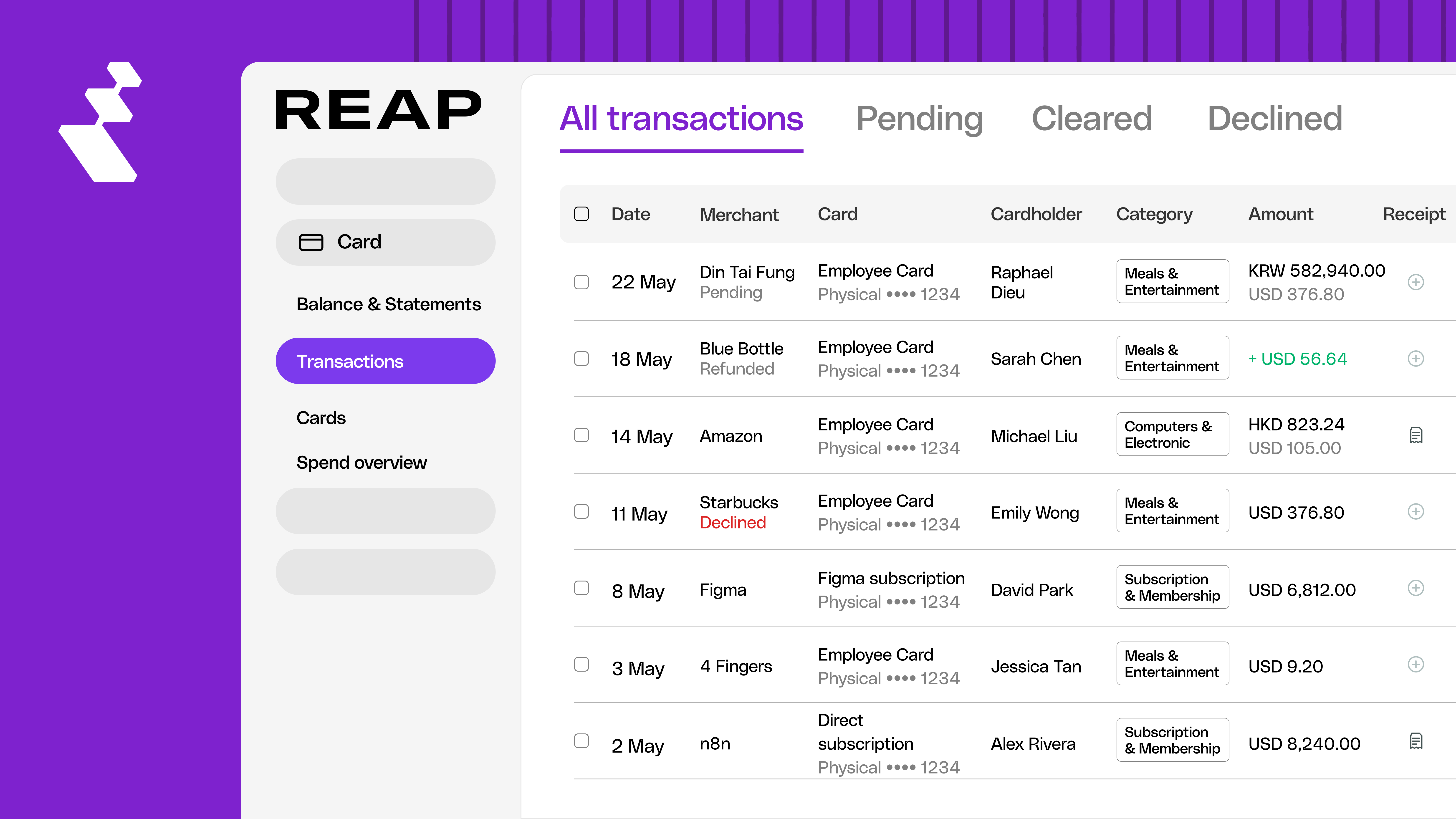
Card Transactions table showing the new column layout with inline Category dropdown and Attachment icons. Read the full update.
2. Faster Card Operations
No more password prompts every time you create, freeze, unfreeze, or terminate a card. Applies to both the Web app and the Mobile App.
3. Terminated Card Transactions Are Now Read-Only
Transactions tied to a deleted or terminated card can't be edited anymore. Previously, trying to update them just threw an error.
4. Clearer Errors for Repeat Payments to Deleted Recipients
If a repeat payment is set up for a recipient who's since been deleted, it's now disabled with a clear message, instead of quietly failing.
5. Improved Document Viewer When Creating Payments
Viewing uploaded documents while creating a Payment is now more reliable.
6. Better Multi-Page Receipt Viewer on Mobile
Multi-page PDF receipts now display correctly in the Mobile App.
7. Smoother Entity Switching on Mobile
Switching between entities at different verification stages on mobile now feels more responsive.
Fixes
- Balance export CSV now generates for all months. It used to fail for months with zero transactions. Your statements were never affected, just this one export.
- Approval requests from terminated cards are now blocked. Approvers used to see no warning that a card was terminated, even though the payment could never actually go through. Now they can't approve it in the first place.
- Credit history CSV export shows accurate credit limits. The value now updates correctly.
- Card unfreeze permissions are enforced on mobile. Only Business Owners and Admins can unfreeze cards now, matching how it already works elsewhere.
Categorize Your Next Payment
Everything above is live in Reap Business Account right now. Create your next Payment transaction to try the new Category dropdown and memo field for yourself.


