
Reviewing card transactions at month-end meant opening each one to check its category. Uploading a receipt meant opening the sidebar, attaching the file, closing it, and moving to the next row. On the Payments side, you couldn't see which category a payment was assigned to without clicking into it. So we've redesigned them to make things easier.
What Changed
- The Card Transactions and Payments tables have been rebuilt into working surfaces for expense review
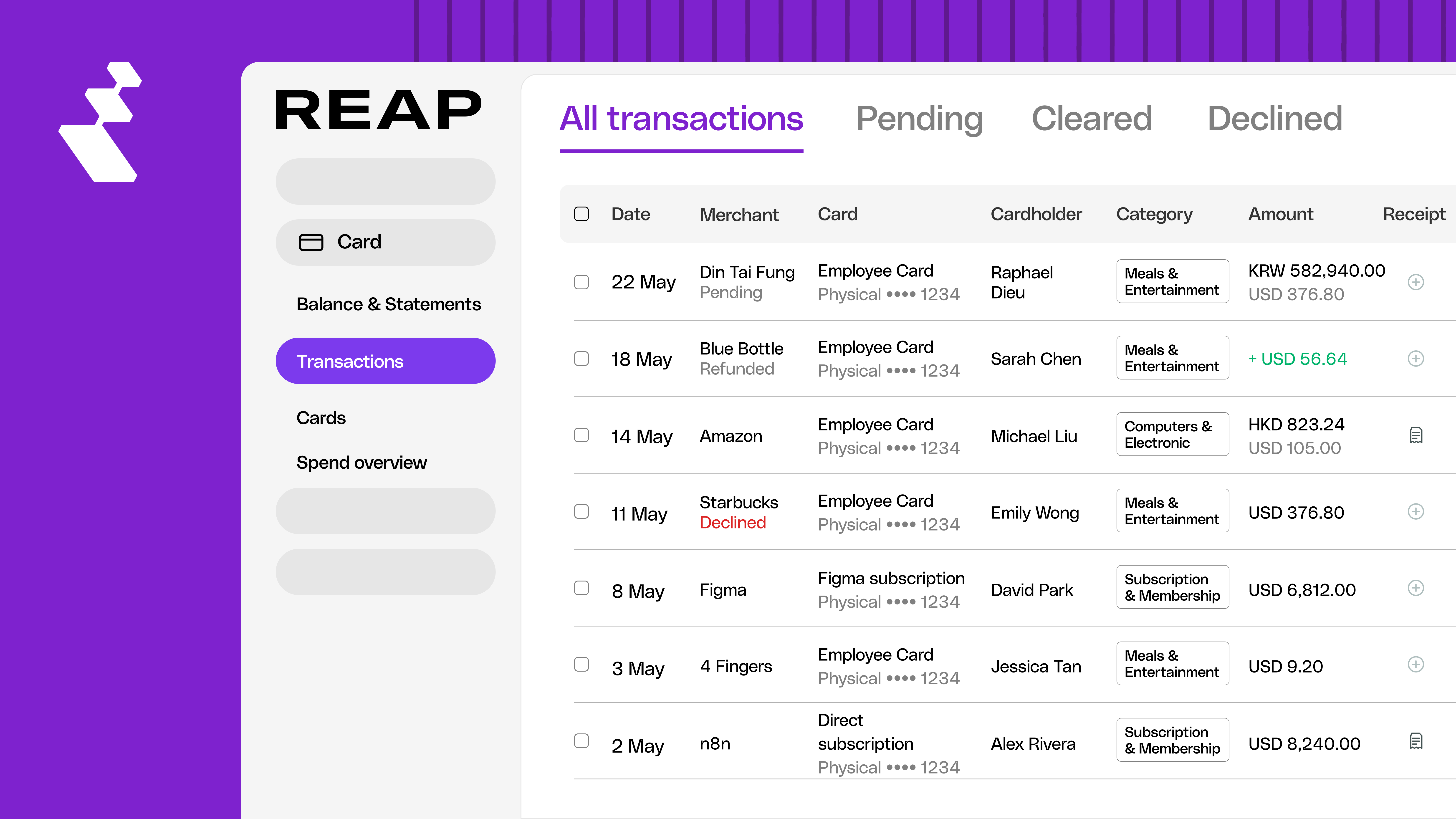
- The Card table now supports inline category editing and at-a-glance receipt tracking, so you can recategorize and attach receipts without leaving the page
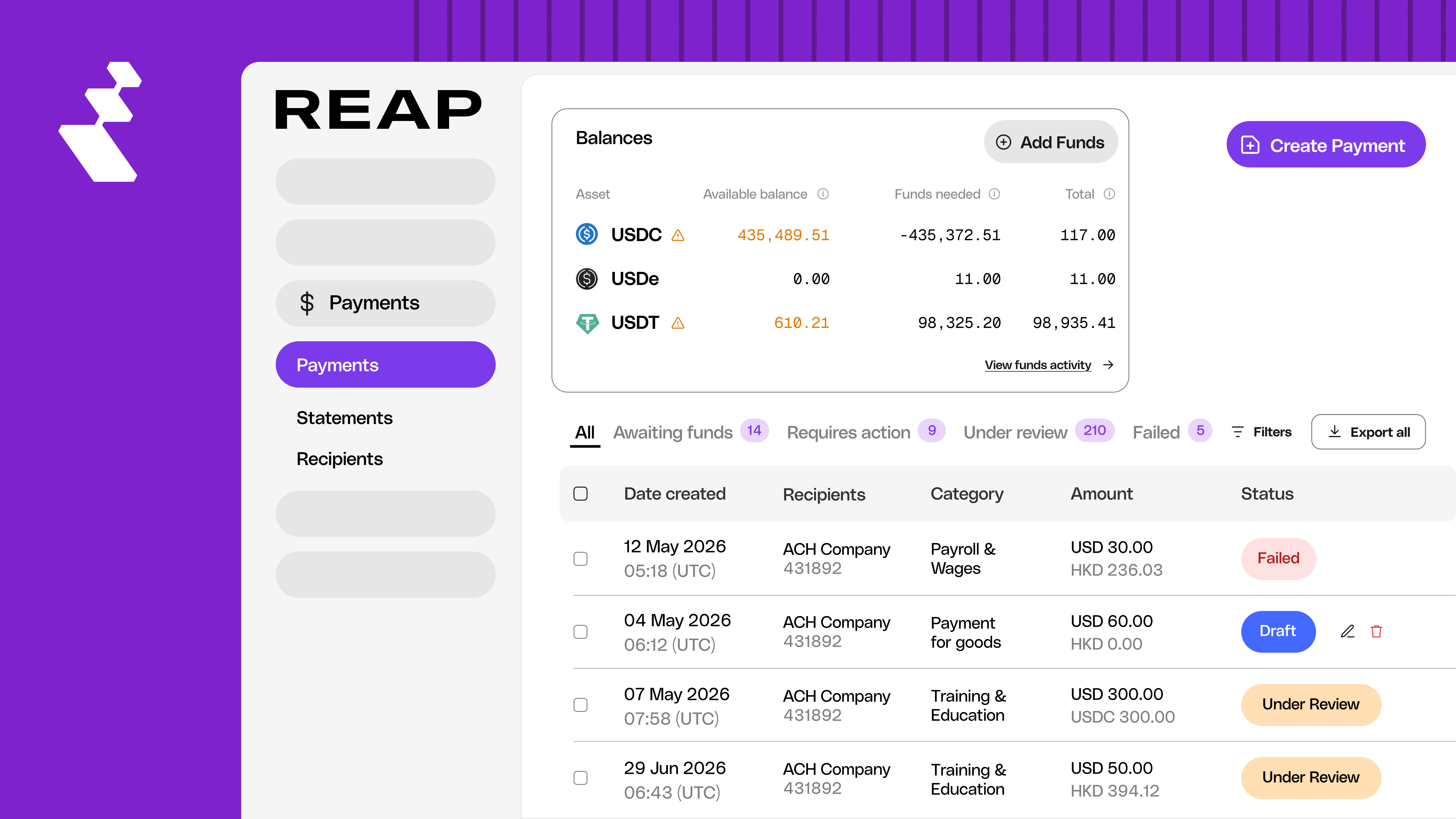
- The Reap Pay table shows the category assigned at payment creation directly in the table
- Both tables share a consistent layout but handle editing differently based on how each product is used
The Card Transactions Table
The Payments Table
Where Things Moved
Several elements have moved to more specific locations in Reap Direct. Here's where to find them.

Deposits: No longer in the Card Transactions table. Go to the Treasury table in the left navigation.
Repayments: No longer in the Card Transactions table. Go to Balance & Statements in the left navigation.
Transaction status (Card): No longer a column. Use the filter tabs at the top of the Card Transactions table: Pending, Cleared, and Declined. Each tab shows a count. Declined transactions also display a label next to the merchant name in the table row, so they're visible without switching tabs. Full status details remain in the transaction detail sidebar.
Cleared date (Card): No longer in the table. Click any transaction row to see the cleared date in the transaction detail sidebar.
How to Edit a Category
Category editing works differently on each table.
Card Transactions (inline): Click the category cell directly in the table row. A grouped dropdown appears. Scroll to the category group, select the category, and it saves automatically. No sidebar, no save button. To clear a category, click the X in the category cell.
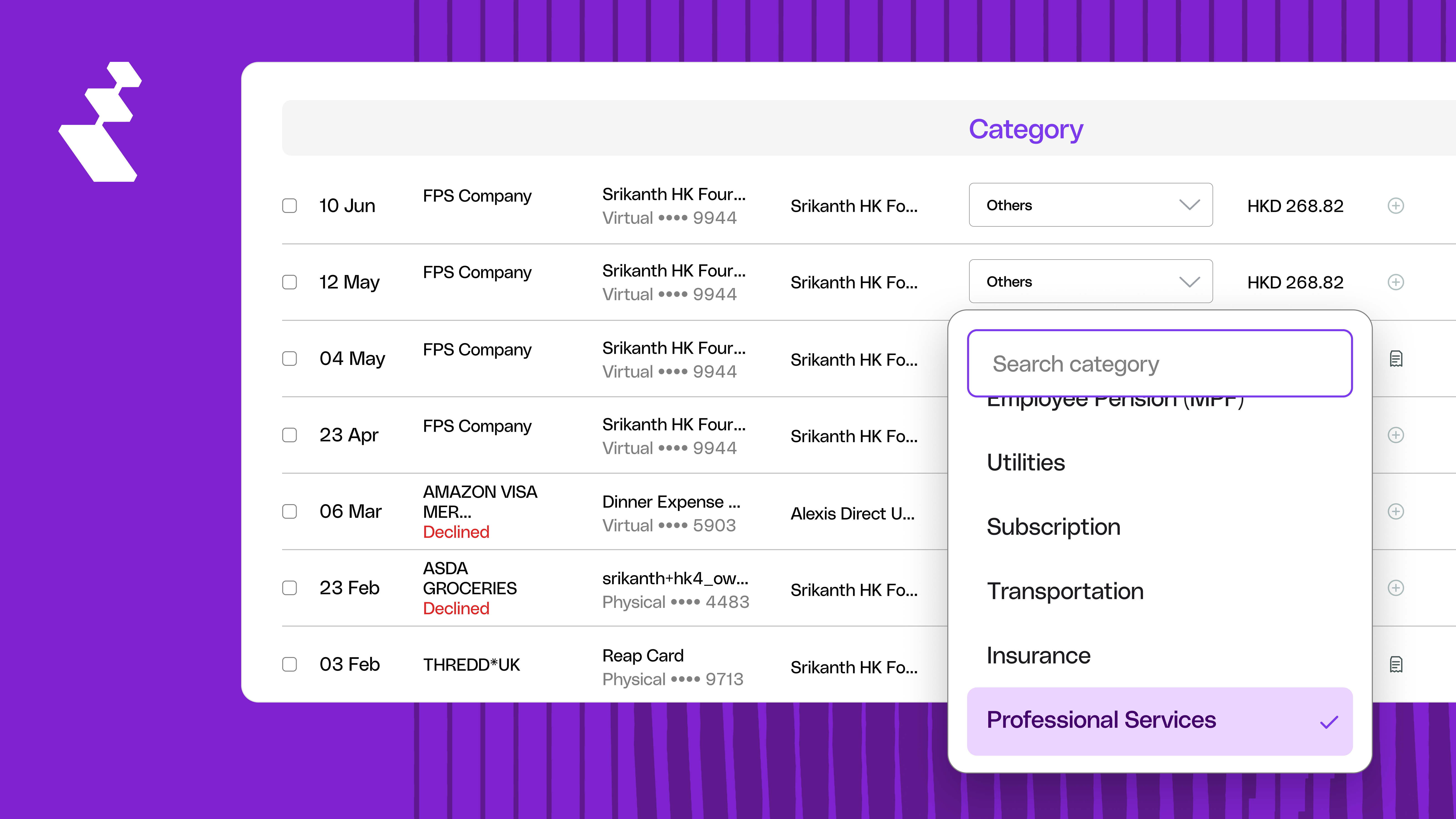
This is built for speed. Card transactions are high-volume, and MCC auto-assignment means categories frequently need correction during month-end review. Inline editing keeps you in the table for the entire pass.
Payments (sidebar): Click the category shown in the Payments table row. This opens the transaction detail sidebar with the category field editable. Make your change in the sidebar. Reap Pay categories are set when you create a payment and rarely need correction, so the sidebar gives you the full payment context alongside the edit
How to Upload and Track Receipts
The Attachment column in the Card Transactions table shows receipt status at a glance. Transactions with a receipt attached show a document icon. Transactions missing a receipt show a plus (+) icon.

To upload: click the plus icon on any row. A file picker opens inline. Select your file and it attaches without opening the sidebar.
To find all transactions missing receipts: use the filter bar to filter by attachment status. The Attachment column makes it easy to scan which rows still need documentation.
Get Started
The upgraded tables are live now and apply automatically. No setup or opt-in required. You'll see the new layout the next time you open Card Transactions or Payments in Reap Direct. Your transaction data and existing categories are unchanged.
For a walkthrough of the new table layouts, category editing, receipt uploads, and answers to common questions (where deposits and repayments moved, how to check transaction status), visit the help centre: Understanding the Upgraded Card and Payment Tables → Link


