
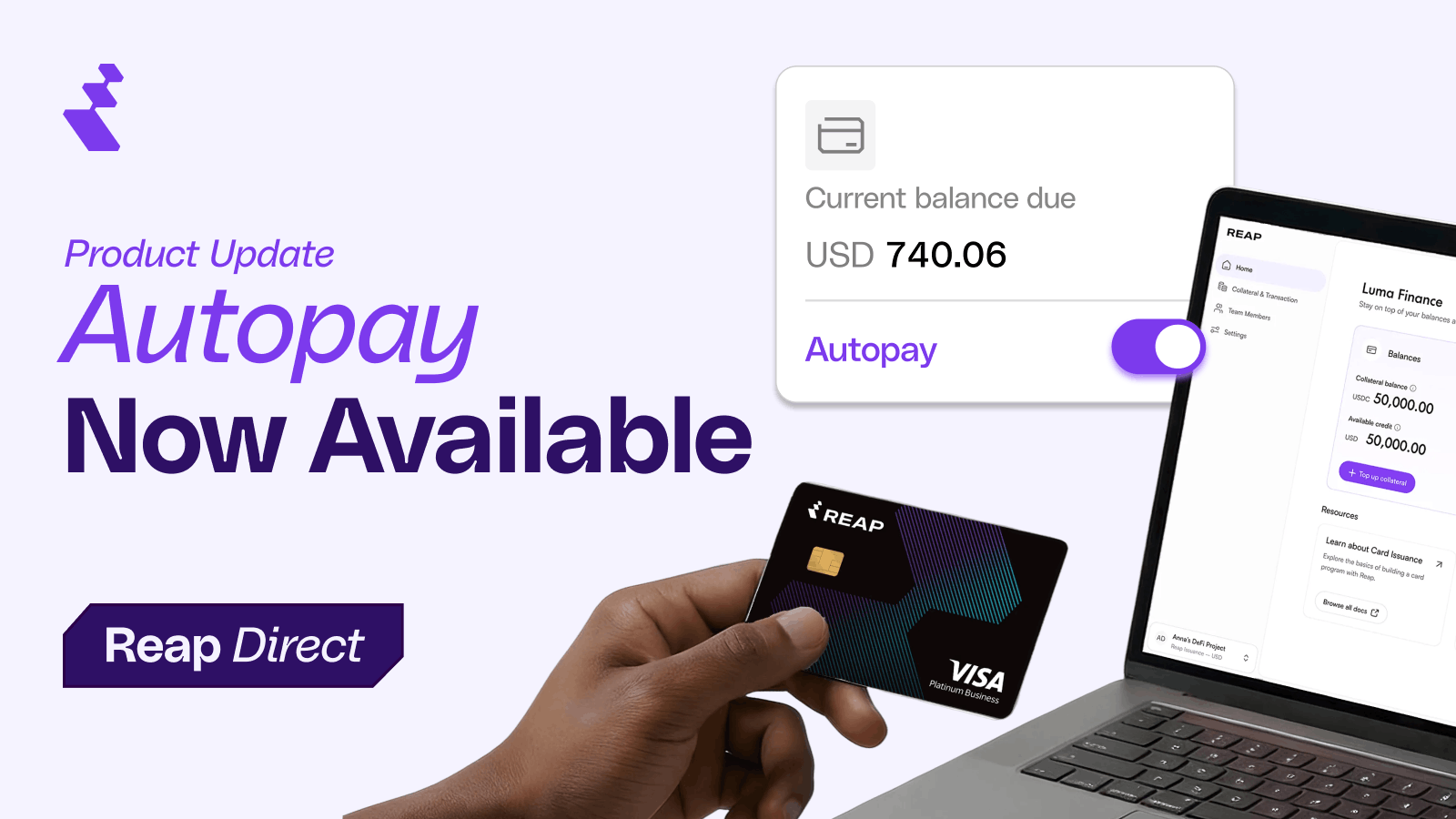
Reap Card users with collateral deposits already fund their spending through those deposits. Until now, you still had to manually click "Make Repayment" after each statement generated. That extra step is gone.
Autopay settles your Reap Card statement balance from your highest-value collateral (USDC, USDT, or Fiat) within 24 hours of your statement generating. The feature is on by default for all users with collateral, and you can turn it off at any time from the Current card statement section of your Balance and Statement page.
What Changed
How Autopay Works

When your statement generates on the 1st of the month, here's what happens:
- Within 24 hours, Reap deducts the full statement balance from your highest-value collateral.
- Your collateral balance decreases by the repayment amount, and your credit limit adjusts accordingly.
- Your outstanding balance goes to $0.
- You receive an email confirmation showing the repayment amount, your previous and new collateral balances, and your updated credit limit.
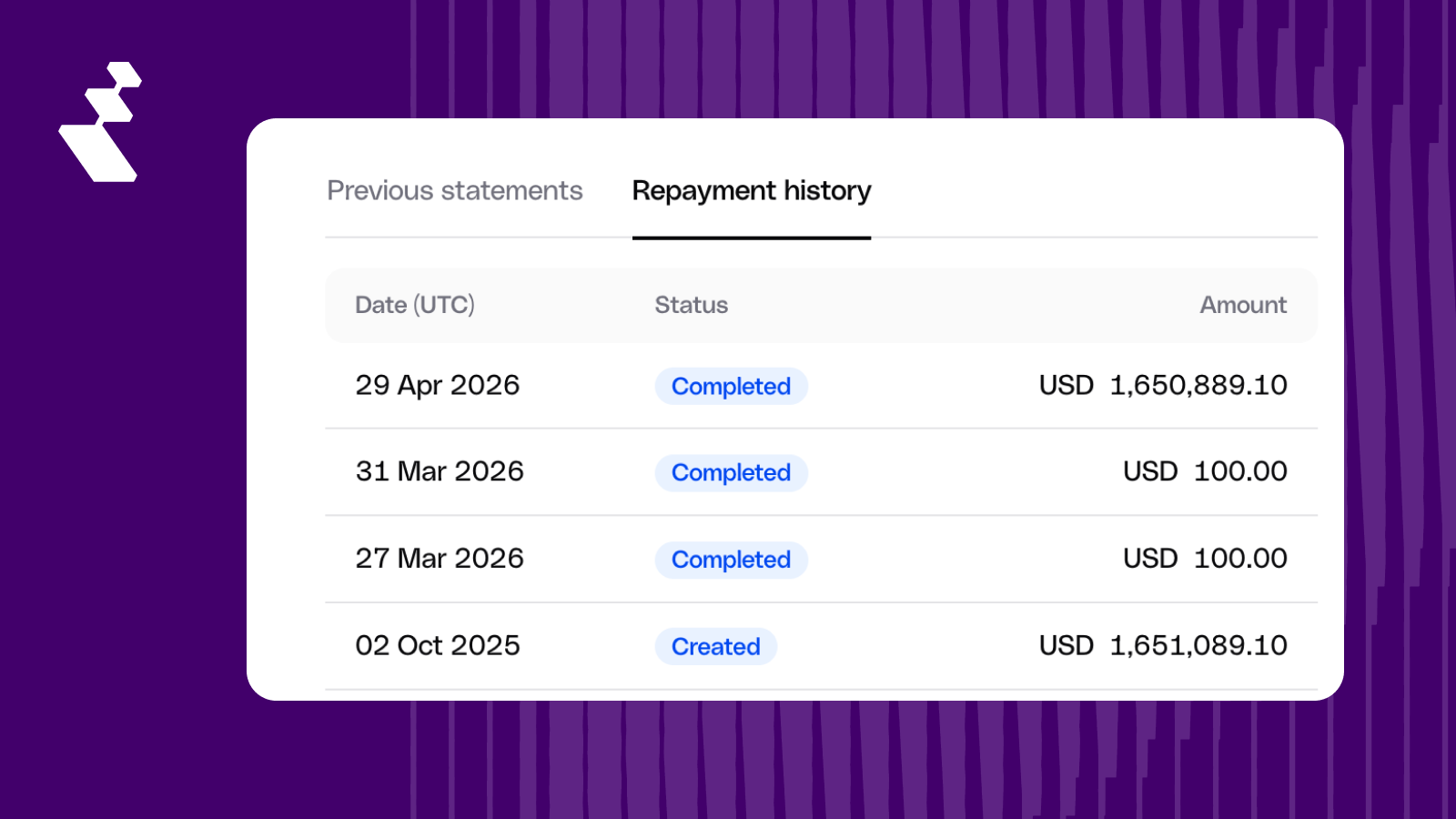
- The transaction appears in your repayment history with a reference ID and the collateral type used.
Where to Find the Setting
The Autopay toggle is in the Current card statement section at the top right of the Balance and Statements page. It's on by default. No setup required.
First-time collateral depositors see a confirmation during the deposit flow explaining that Autopay is enabled, with a link to settings for anyone who prefers to disable it.

What Happens With Partial Repayments
If your highest-value collateral doesn't cover the full statement balance, Autopay uses what's available and notifies you immediately.
You'll receive an email showing the amount repaid, the collateral source used, the remaining balance, and the date by which to repay manually to avoid late fees. The email includes a direct link to the manual repayment flow. Standard repayment reminders continue for the remaining balance.
Example: Your statement balance is $10,000. Your USDC balance (highest-value) is $7,000. Autopay repays $7,000 from USDC and sends you an alert about the remaining $3,000.
How Autopay Affects Your Collateral and Credit Limit
Your credit limit is derived from your collateral balance. When Autopay deducts a repayment, your collateral balance decreases and your credit limit decreases by the same amount. Your outstanding balance goes to $0, so your available credit equals your new credit limit.
This is the same outcome as a manual repayment. Autopay changes when and how the repayment happens, not what it does to your balances.
Turning Off Autopay
If you prefer to continue repaying manually:
- Go to the Balance and Statements page and find the Current card statement section.
- Toggle Autopay to off.
- A confirmation prompt explains that you'll need to manually repay each month to avoid late fees.
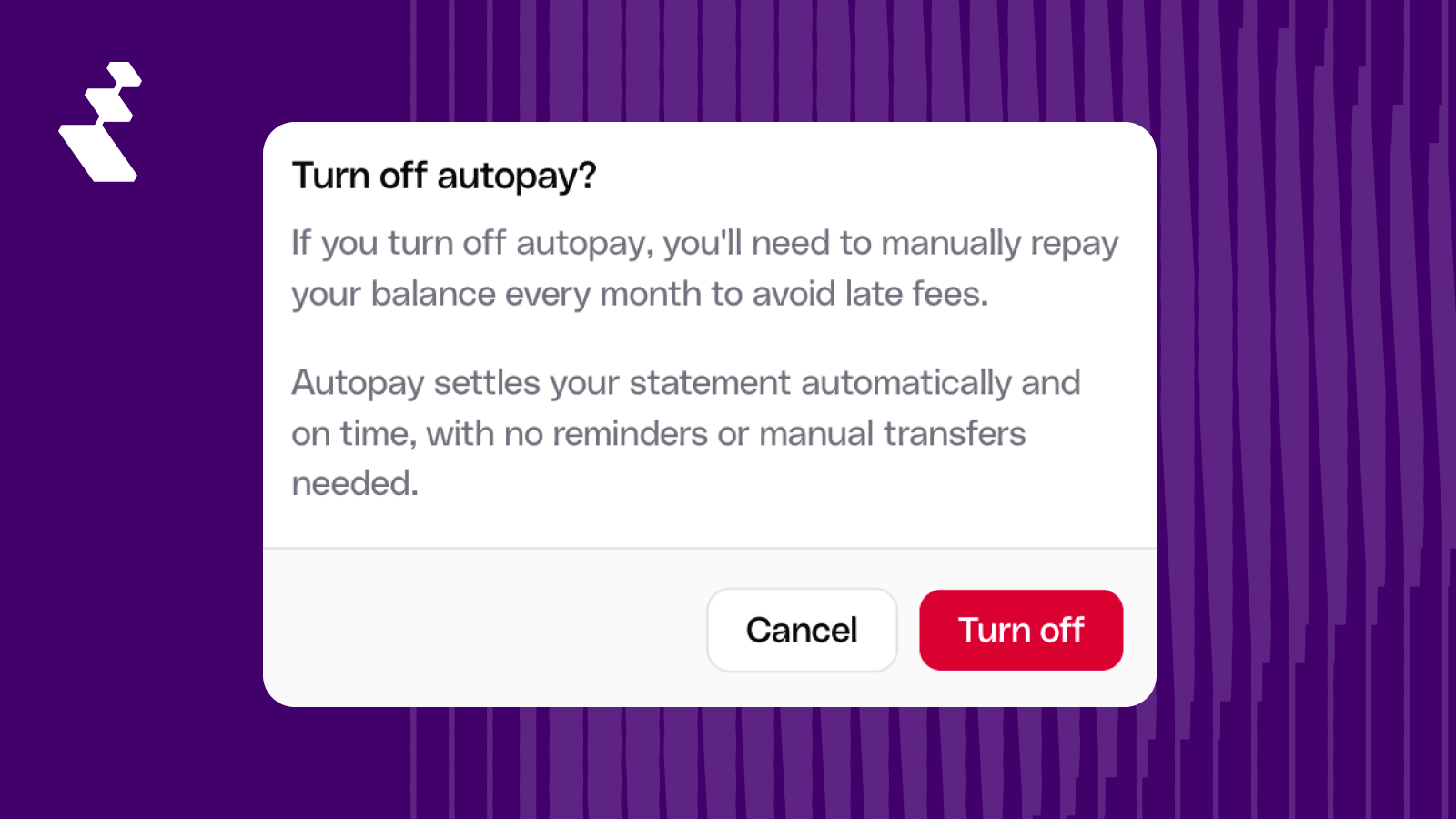
After disabling, the standard manual repayment flow and reminder schedule apply. You can re-enable Autopay at any time from the same section; it takes effect starting from your next statement cycle.
The setting is per entity. If your organization has multiple entities on Reap, each one controls its own Autopay setting independently.
How Autopay Appears on Your Statement
Autopay transactions are recorded the same way as manual repayments in the PDF. On your PDF statement, the repayment appears as "Repayment" in the Collateral Movement table (Page 1). The Account Summary does not distinguish between automatic and manual repayments. In the CSV export they are categorized as auto_pay.
In the CSV export, each Autopay transaction includes a reference ID for cross-table reconciliation.
Get Started
Autopay is live now and on by default for all Reap Card users with collateral. Your next statement will be repaid automatically; no action needed. If you'd prefer to repay manually, toggle the setting off in the Payment Information section of your Transactions page before your next statement generates.
For a full walkthrough of Autopay, partial repayment behavior, and answers to common questions, visit the help centre: How Autopay Works →


