
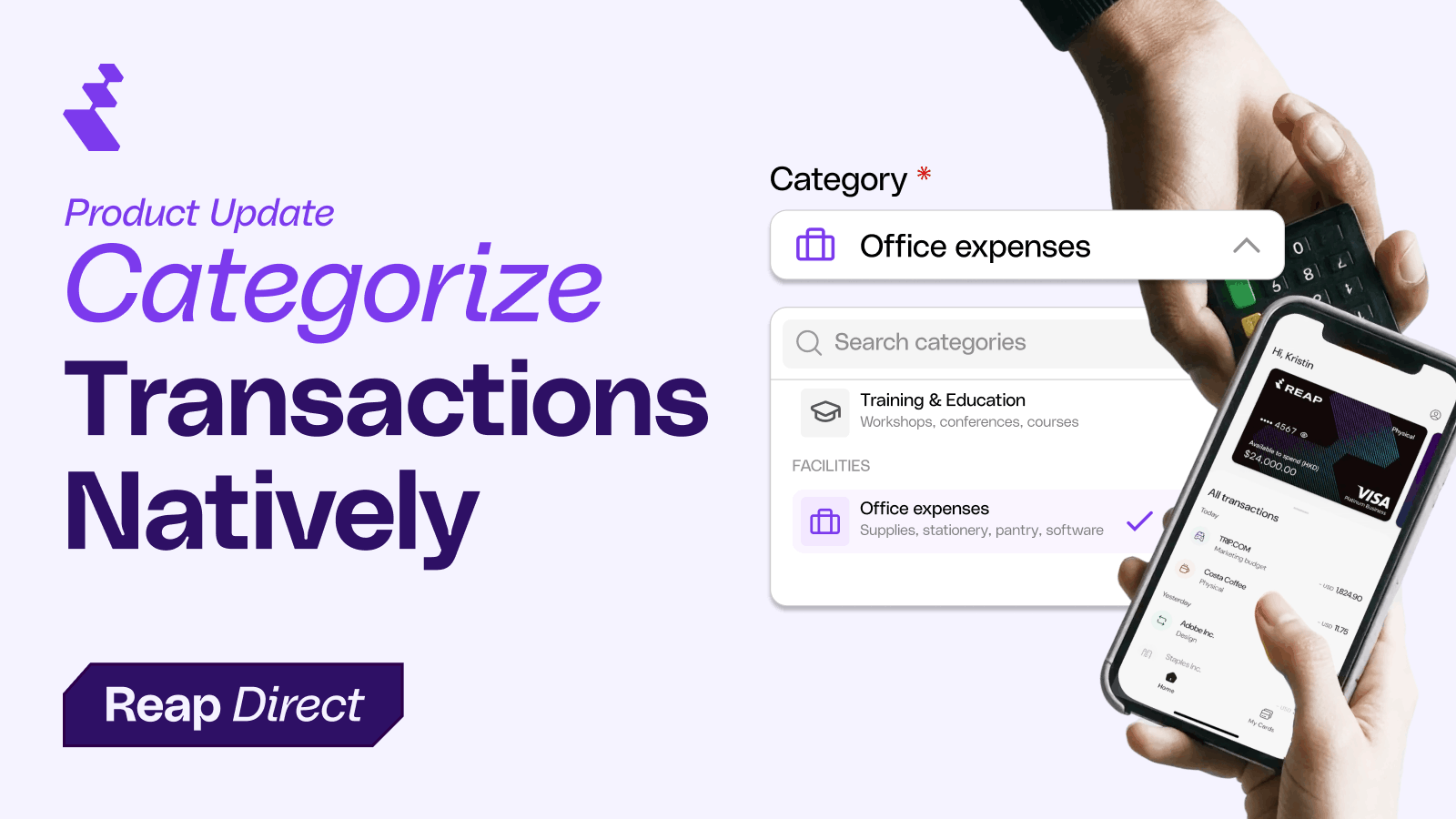
Reconciling Reap Pay transactions meant exporting to a spreadsheet and manually tagging every payment. You had amounts, dates, and recipients, but no context on what the payment was actually for. That made month-end categorization slow and error-prone.
That's done. Reap Pay now has expense categories and an optional memo field built into the payment flow. Every payment gets tagged at creation, and both fields export to CSV for your general ledger.
What Changed
The old "Purpose of Payment" dropdown used banking terminology that most finance teams never needed to see. We replaced it with 27 expense categories across 8 groups, added a free-text memo field, and mapped everything to the correct banking codes behind the scenes. You pick the category that makes sense for your books. Reap handles the rest.
Selecting a Category
The Category dropdown appears where "Purpose of Payment" used to be. It's required for every payment.
Categories are organized into 8 groups so you can scan for the right one quickly:
| Group | Categories |
|---|---|
| People | Payroll & Wages, Contractors & Freelancers, Benefits & Insurance, Training & Education |
| Facilities | Rent & Lease, Utilities, Maintenance & Repairs |
| Technology | Software & SaaS, Computers & Electronic Devices, Hosting & Cloud, Telecom & Internet |
| Professional Services | Legal, Accounting & Audit, Consulting, Marketing & Advertising |
| Operations | Office & Supplies, Shipping & Postage, Inventory & COGS |
| Travel & Entertainment | Travel & Lodging, Meals & Entertainment, Transportation |
| Financial | Bank & Payment Fees, Interest & Loans, Insurance, Taxes & Licenses |
| Other | Other, Capital Investment or item |
If nothing fits, select "Other." Custom categories are on the roadmap.

Using the Memo Field
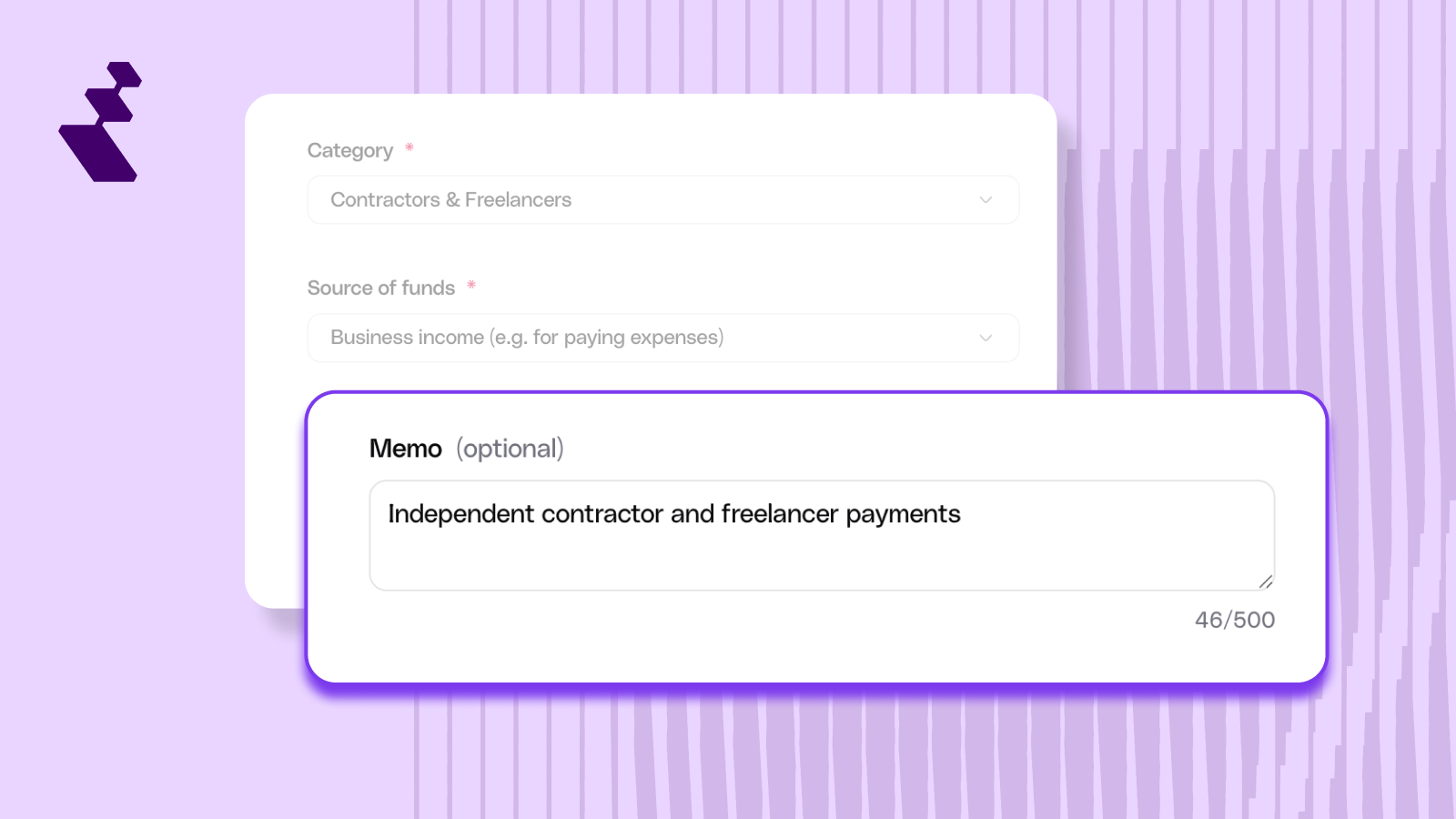
Below the payment reference field, there's a new optional "Memo" field with a 500-character limit. When you select a category, the memo auto-populates with that category's description (for example, selecting "Software & SaaS" fills in "Software subscriptions, licenses, cloud tools").
You can keep the default, replace it with your own text (like "Figma annual license, Design team"), or clear it entirely. If you change the category after writing a custom memo, your text is preserved. The memo won't overwrite what you've already typed.
Editing After Payment
Both the category and memo are editable in the payment drawer after you create a payment. Here's how editability works depending on payment status:
If you edit the category after a payment has been submitted, only the label on the Reap side changes. The banking record stays as it was at submission. For recurring payments, edits apply to the individual payment only and don't carry forward.
.png)
CSV Export
The transaction CSV export now includes two new columns:
The CSV is designed to be import-ready for general ledger systems like NetSuite, Xero, and Oracle. Pre-launch payments retain their original "Purpose of Payment" value in the Category column. No backfill has been applied to historical transactions.
How to export: Use the Export History button on the Transactions page in Reap Pay.
.png)
Get Started
Categories and memos are live now. Your next Reap Pay transaction will prompt you to select a category. Existing payments are unaffected.
For the full list of categories, memo field behavior, editability rules, and answers to common questions, visit our help centre: Understanding Reap Pay Categories →


